
Windows 10 has officially reached the end of its normal support period.
That does not mean your computer suddenly stopped working. It does mean that continuing to use Windows 10 without taking additional steps could eventually leave your computer exposed to security problems, software compatibility issues, and fewer options when something goes wrong.
Microsoft ended standard support for Windows 10 on October 14, 2025. Computers running Windows 10 can still turn on and operate, but they no longer receive normal security fixes, feature updates, or technical support unless they are enrolled in an eligible Extended Security Updates program. You can read Microsoft’s official explanation on its Windows 10 end-of-support page.
For computer owners in Durham, the important question is not simply whether Windows 10 is “dead.” The real question is:
What is the most sensible next step for your particular computer?
Depending on its age, condition, specifications, and how you use it, you may be able to keep it safely for a while longer, upgrade it to Windows 11, or replace it without losing your files and familiar programs.
A 2026 Update: Windows 10 Security Updates Are Available Through October 2027
Microsoft originally offered consumers a shorter extension period. In June 2026, however, Microsoft updated the consumer Extended Security Updates program so that eligible Windows 10 computers can continue receiving important security updates through October 12, 2027.
That gives Windows 10 users more breathing room, but enrollment is not automatic for someone who has never joined the program.
According to Microsoft, a qualifying home computer must generally:
- Run Windows 10 version 22H2
- Have the latest available Windows updates installed
- Use an administrator-level Microsoft account for enrollment
- Be individually enrolled through Windows Update
Microsoft currently provides three consumer enrollment options:
- Enroll at no additional cost by syncing your PC settings
- Redeem 1,000 Microsoft Rewards points
- Pay a one-time charge of $30
One ESU enrollment can cover as many as 10 eligible computers associated with the same Microsoft account. Full eligibility details are available on Microsoft’s official Windows 10 Extended Security Updates page.
There is an important limitation: ESU provides security updates. It does not add new Windows features, correct every non-security problem, or include Microsoft technical support.
Think of it as extra time to prepare—not a permanent solution.
Will Your Windows 10 Computer Stop Working?
No.
Windows 10 does not contain a timer that disables the computer after its support date. Your desktop should still load, your files should remain in place, and most of your programs may continue working normally.
The change involves support and security.
Without ESU enrollment, newly discovered Windows vulnerabilities may no longer be corrected by Microsoft. As months and years pass, software developers and hardware manufacturers may also reduce support for Windows 10.
That can eventually affect:
- Web browsers
- Antivirus software
- Printers and scanners
- Financial and tax software
- Microsoft Office
- Backup software
- New accessories
- Device drivers
The computer may seem fine today while gradually becoming harder to maintain.
Your Three Main Options
Most Durham computer owners now have three reasonable choices.
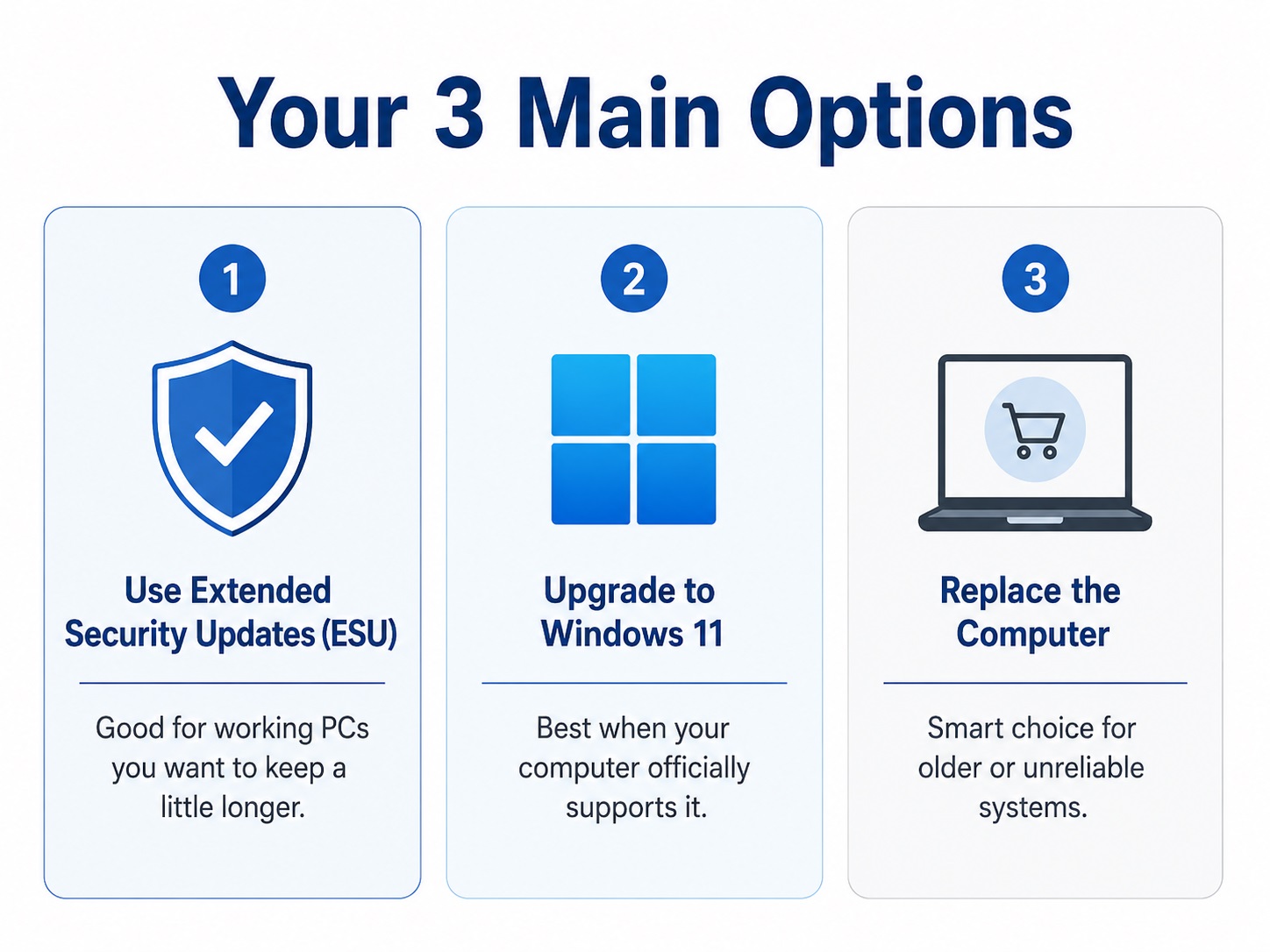
Option 1: Enroll in Extended Security Updates
ESU may be the right choice when your computer is still working well and you are not ready to replace it.
This can make sense when:
- The computer is reliable and fast enough for your needs
- You only need basic email, web browsing, document, or printing functions
- Your important programs still work properly
- You need additional time to budget for a replacement
- You want to delay a major computer change
- The computer cannot officially run Windows 11
ESU gives you additional protection while you decide what to do next. It should not be treated as permission to ignore the computer indefinitely.
Before enrolling, make sure the machine has a reliable backup. An aging computer can experience a hard-drive, solid-state-drive, battery, or power failure regardless of its Windows version.
How to Look for the ESU Enrollment Option
On a Windows 10 computer:
- Select the Start button.
- Open Settings.
- Select Update & Security.
- Select Windows Update.
- Install any pending updates.
- Look for the option to enroll in Extended Security Updates.
If the enrollment option is missing, the computer may need additional updates, may not be running Windows 10 version 22H2, or may not meet one of Microsoft’s account requirements.
Option 2: Upgrade Your Current Computer to Windows 11
A Windows 11 upgrade is usually the best outcome when your current computer officially supports it and is otherwise in good condition.
For eligible Windows 10 Home and Pro computers, Microsoft says the equivalent Windows 11 upgrade is free.
Windows 11 has stricter requirements than previous versions of Windows. The basic requirements include:
- A compatible 64-bit processor
- At least 4GB of memory
- At least 64GB of storage
- UEFI firmware
- Secure Boot capability
- TPM 2.0
- DirectX 12-compatible graphics
The complete requirements are available on Microsoft’s Windows 11 specifications page.
Some computers are marked incompatible even though they are fast enough for everyday work. This commonly happens because TPM or Secure Boot is disabled in the computer’s firmware settings.
That does not necessarily mean you need a new computer.
A technician may be able to enable the required settings and complete a fully supported upgrade. The computer’s processor and other hardware still need to meet Microsoft’s requirements.
Check Your Computer Before Attempting the Upgrade
Microsoft provides compatibility information through its Windows 11 upgrade page.
Before upgrading, check:
- Whether the processor is officially supported
- Whether TPM 2.0 is available and enabled
- Whether Secure Boot can be enabled
- Whether enough free storage is available
- Whether the computer manufacturer provides Windows 11 drivers
- Whether your printer and other accessories are compatible
- Whether important programs will continue working
You should also back up your files before beginning. Microsoft states that files normally transfer during an upgrade, but still recommends making a backup first.
Should You Install Windows 11 on an Unsupported Computer?
There are unofficial methods for bypassing Microsoft’s hardware checks.
In most cases, I do not recommend doing this on a computer you depend on for work, banking, medical records, taxes, or other important tasks.
An unsupported installation may work, but you could encounter:
- Missing drivers
- Future update restrictions
- Unexplained crashes
- Poor performance
- Problems after major Windows updates
- Reduced support from Microsoft or the computer manufacturer
Using an unsupported installation on a secondary experimental computer is different from relying on one as your primary household or business computer.
For your main computer, stability is usually more valuable than squeezing another year out of unsupported hardware.
Option 3: Replace the Computer
Replacing a Windows 10 computer is not always necessary, but sometimes it is the most economical answer.
Replacement may make more sense when the computer:
- Does not officially support Windows 11
- Is already running slowly
- Has a failing hard drive
- Needs an expensive screen, motherboard, or hinge repair
- Has a worn-out battery and other problems
- Cannot run the programs you need
- Has limited memory or storage
- Is no longer reliable enough for daily use
A seven- or eight-year-old computer that needs several repairs may not be a good place to keep investing money.
On the other hand, a well-built older computer with a solid-state drive, enough memory, and no major physical problems may still be useful during the ESU period.
The decision should be based on the whole computer—not just the Windows sticker.
Repair, Upgrade, or Replace? A Practical Rule
Here is the approach I generally recommend.
Keep the Computer and Use ESU When:
- It does everything you need
- It is physically reliable
- It has an SSD
- You are comfortable replacing it before October 2027
- You understand that ESU is temporary
Upgrade to Windows 11 When:
- The computer officially qualifies
- It has adequate memory and storage
- Your software and accessories are compatible
- The machine is still worth keeping for several more years
Replace the Computer When:
- It cannot officially run Windows 11
- It already needs significant repairs
- It is too slow for your normal work
- Its storage or hardware is beginning to fail
- You want a dependable long-term solution
There is no single answer that is right for everyone.
Someone using a computer twice a week for email has very different needs from a remote employee, small-business owner, student, gamer, or photographer.
Back Up Your Files Before Making Any Changes
Whether you enroll in ESU, upgrade to Windows 11, or purchase another computer, this is a good time to check your backup.
Important files may include:
- Family photos and videos
- Tax documents
- Business records
- Desktop files
- Documents and spreadsheets
- Email archives
- Browser bookmarks
- Saved passwords
- Accounting data
- Scanned records
- Program license information
Microsoft offers a built-in Windows Backup system, and its Windows Backup guide explains how Microsoft accounts and OneDrive can be used to transfer certain files and settings.
Cloud backup can be useful, but it is not the only option. An external hard drive can also provide a local copy of important data.
For particularly valuable files, using both a local and cloud backup provides better protection than relying on only one copy.
Why In-Home Windows 10 Help Can Be Easier
Many Windows upgrades and new-computer setups involve more than the computer itself.
Your computer may need to reconnect to:
- Your home Wi-Fi
- A wireless printer
- A scanner
- External backup drives
- Network storage
- Multiple monitors
- Speakers and webcams
- Email accounts
- Microsoft 365
- QuickBooks or other business software
When the work is completed in your home, these devices can be tested in the environment where you actually use them.
You also avoid disconnecting a desktop tower, carrying it to a shop, and trying to remember where every wire belonged when you bring it home.
For many Durham residents—particularly people who work from home, have limited mobility, or rely on several connected devices—an in-home appointment can make the transition considerably easier.
How SureTech Services Can Help Durham Computer Owners
SureTech Services provides in-home computer assistance throughout the Durham area.
We can help you:
- Determine whether your computer supports Windows 11
- Check TPM and Secure Boot settings
- Update Windows 10 before ESU enrollment
- Assist with consumer ESU enrollment
- Back up important files
- Upgrade a compatible computer to Windows 11
- Check printer and accessory compatibility
- Recommend an appropriate replacement computer
- Set up a new desktop or laptop
- Transfer files from an old computer
- Reconnect printers, Wi-Fi, email, and other devices
- Securely prepare an older computer for retirement
The goal is not automatically to sell you a new computer.
The goal is to determine which choice makes the most sense for the equipment you already own, the programs you use, and the amount you are comfortable spending.
Frequently Asked Questions
Is Windows 10 still safe to use in 2026?
A Windows 10 computer that is properly enrolled in Microsoft’s consumer Extended Security Updates program can continue receiving eligible security updates through October 12, 2027. A computer that is not enrolled no longer receives normal Windows 10 security fixes.
Is Windows 10 ESU really free?
Microsoft currently offers a no-additional-cost option for users who sync their PC settings. Users may also redeem 1,000 Microsoft Rewards points or make a one-time $30 purchase. A Microsoft account is required for enrollment.
Will antivirus protect Windows 10 after support ends?
Antivirus remains useful, but it does not replace Windows security updates. Antivirus software may detect some malicious files, while operating-system patches correct vulnerabilities within Windows itself.
Do I have to buy a new computer?
Not necessarily. Your computer may qualify for Windows 11, or ESU may provide enough time to continue using it while planning for a future replacement.
Can my Windows 10 computer be upgraded to Windows 11 for free?
Eligible Windows 10 computers can generally upgrade to the corresponding edition of Windows 11 without purchasing a new Windows license. The computer must meet Microsoft’s hardware requirements.
Can I continue using an old Windows 10 computer without internet access?
A disconnected computer can still be useful for certain offline programs, older equipment, or accessing archived files. However, you should avoid using an unsupported offline computer for sensitive internet activities if it is later reconnected without being properly secured.
How long can I safely wait?
Consumer ESU currently extends eligible Windows 10 security coverage through October 12, 2027. That date should be treated as the final deadline for moving to a supported operating system or replacing the computer.
Need Help Deciding What to Do With Your Windows 10 Computer?
You do not have to guess whether your computer should be upgraded, extended, repaired, or replaced.
SureTech Services can inspect the computer in your Durham home, explain your available options in plain language, and help you choose a practical path without pressuring you into equipment you do not need.
Contact SureTech Services to schedule an in-home Windows 10 or Windows 11 appointment in Durham, NC.
Windows 10 Support Has Ended: What Durham Computer Owners Should Do Next